How I set up Claude to post my videos to Instagram and Facebook
A plain-English, step-by-step guide to a free auto-poster that shares your videos three times a day. No coding experience needed.
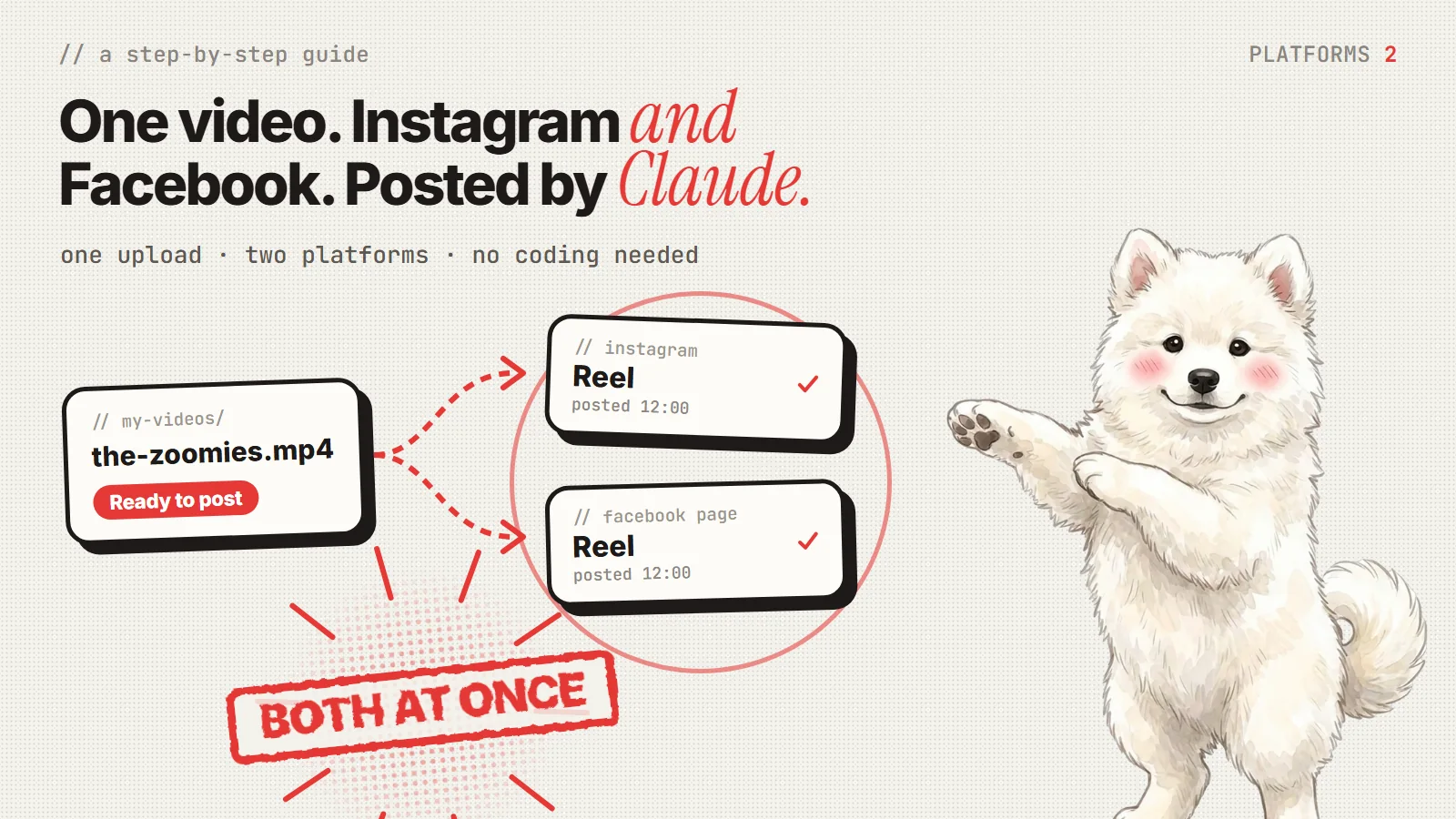
Making the video is the fun part. Posting it is not.
Every short video I make goes to Instagram and to a Facebook Page. That used to mean opening two apps, pasting the same caption twice, and trying to remember what went out yesterday. So I asked Claude to help me build a small helper that does it for me.
This guide walks you through the whole thing, one click at a time. You don't need to know how to code. Claude writes the code. Your job is the logins, because those belong to you.
Set aside about 30 minutes for the first setup. After that, posting takes zero minutes.
The big picture
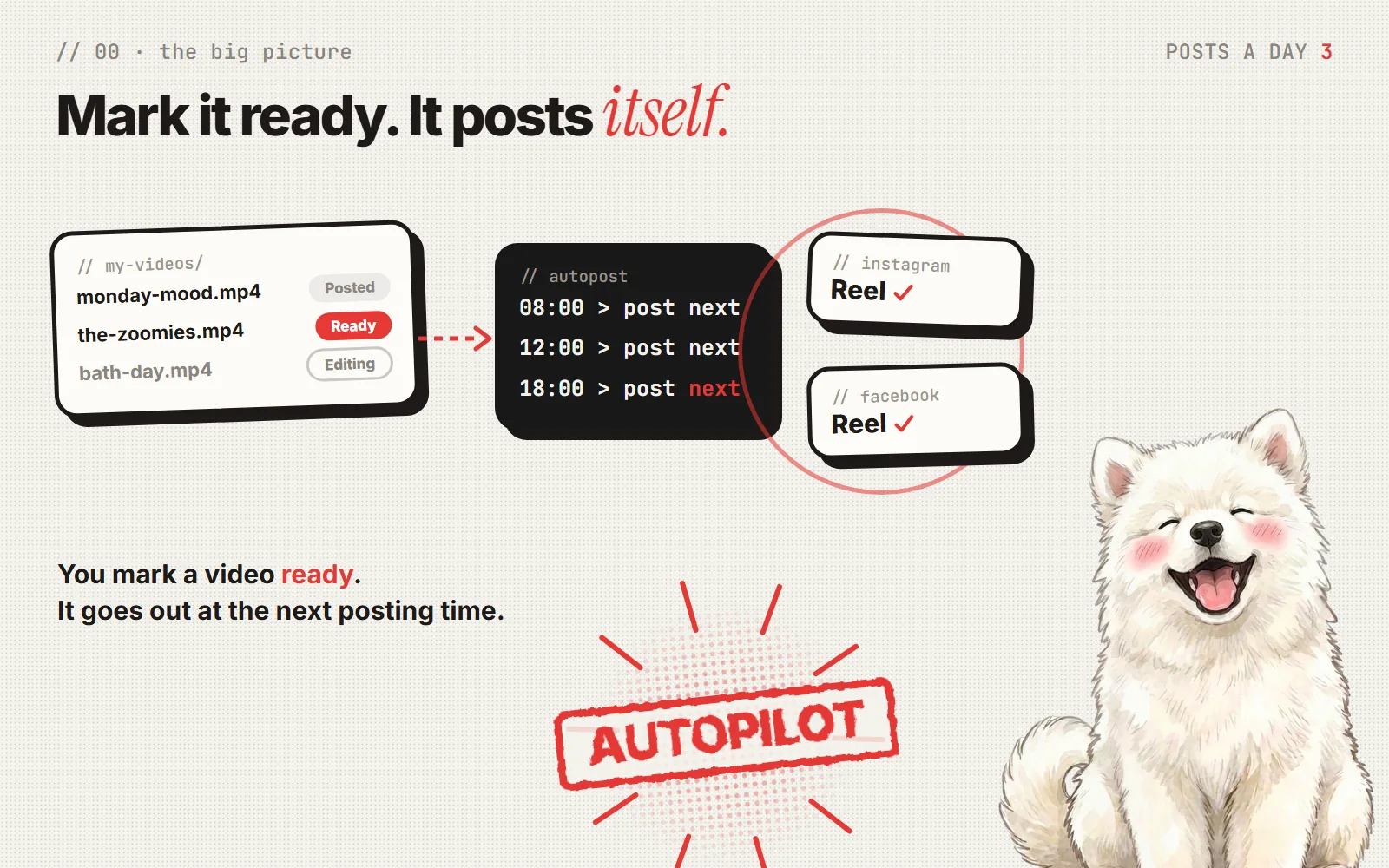
Here's what you'll end up with:
- You finish a video and mark it Ready to post in a simple list.
- Three times a day (I picked breakfast, lunch and dinner), a small program on your computer wakes up.
- It takes the oldest ready video and posts it as a Reel to Instagram and to your Facebook Page, with its caption.
- It marks that video Posted, so nothing goes out twice.
It's free. It uses Meta's own official connection for apps, not a paid scheduling service.
A few words you'll see
Don't worry about memorizing these. Come back here if a word trips you up.
- Meta: the company that owns Facebook and Instagram.
- API: the official "back door" Meta gives programs so they can post for you, with your permission.
- App: here, not something on your phone. It's just a name tag you create so Meta knows which program is asking to post.
- Token: a long secret code that works like a key card. Whoever has it can post to your accounts, so you keep it private.
- ID: a number Meta uses to identify your Page or Instagram account. IDs aren't secret, but you'll need them.
What you need before you start
- An Instagram account for your videos.
- A Facebook Page (a Page, not your personal profile).
- A computer that's on and signed in at your posting times.
- Claude set up so it can work with files on your computer. I use Claude Code in the Claude desktop app.
Part 1: Make Instagram a "professional" account
Meta only lets programs post to professional accounts. Switching is free, and you can switch back later.
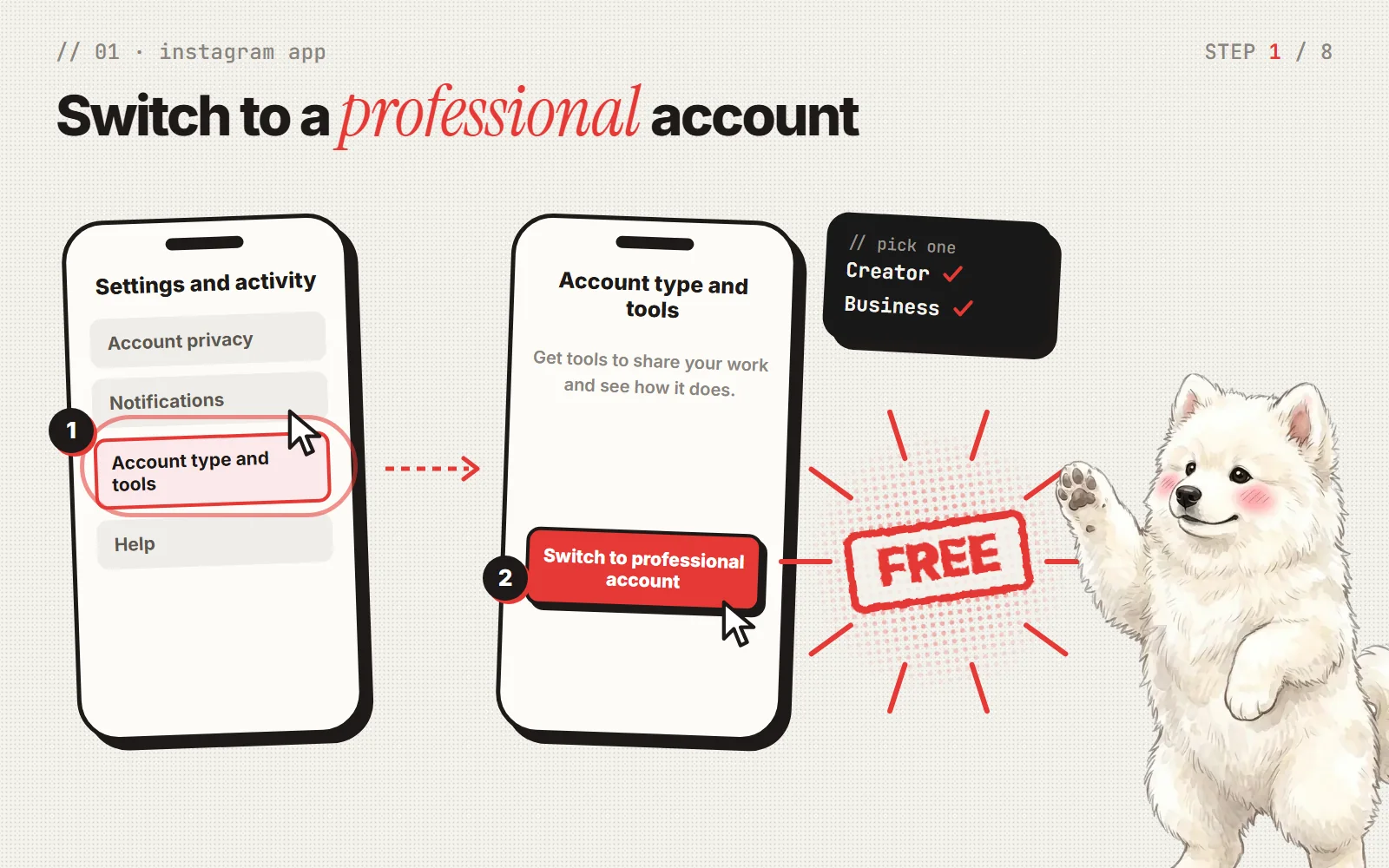
- In the Instagram app, tap your profile picture, then the menu (three lines, top right).
- Tap Account type and tools.
- Tap Switch to professional account. Choose Creator or Business. Either one works.
- Now connect it to your Facebook Page. In Instagram's menu, open Accounts Center, choose Accounts, then Add accounts, and add your Facebook account and Page.
✅ Done when: your Instagram account shows professional tools, and your Facebook Page is listed as connected.
Part 2: Create a free Meta "app"
Remember, this "app" is just a name tag for your auto-poster. Nobody else will ever see it.
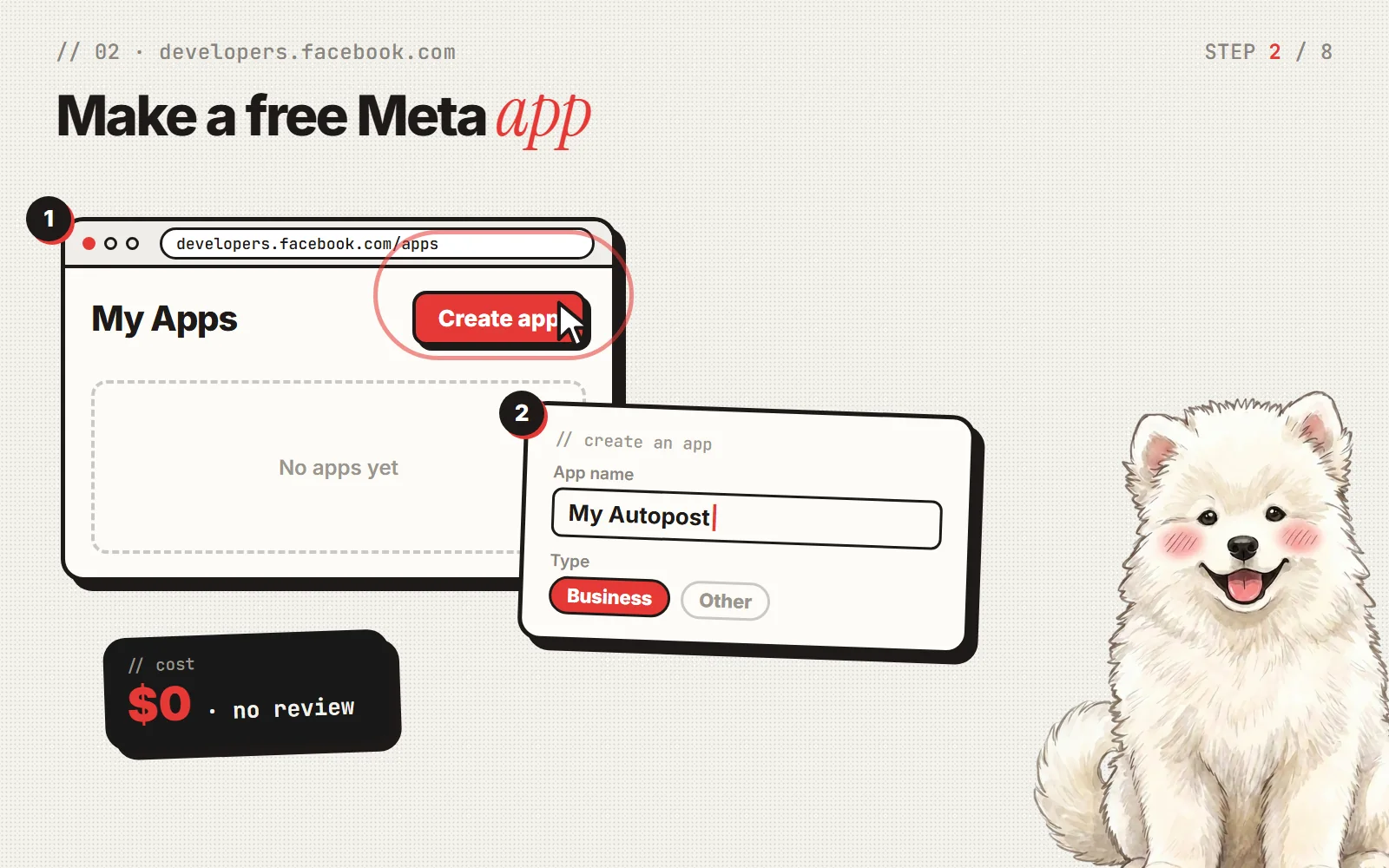
- On a computer, go to developers.facebook.com and log in with your Facebook account. If it asks you to register as a developer, say yes. It's free.
- Click My Apps, then Create app.
- Give it a simple name, like My Autopost.
- When it asks what kind of app, choose Business. If you see Other first, pick that, then Business.
- Click Create.
You don't need to submit it for review or make it public. Because you're the owner and you're only posting to your own accounts, it works as is.
✅ Done when: you see your new app's dashboard.
Part 3: Get your key (the token)
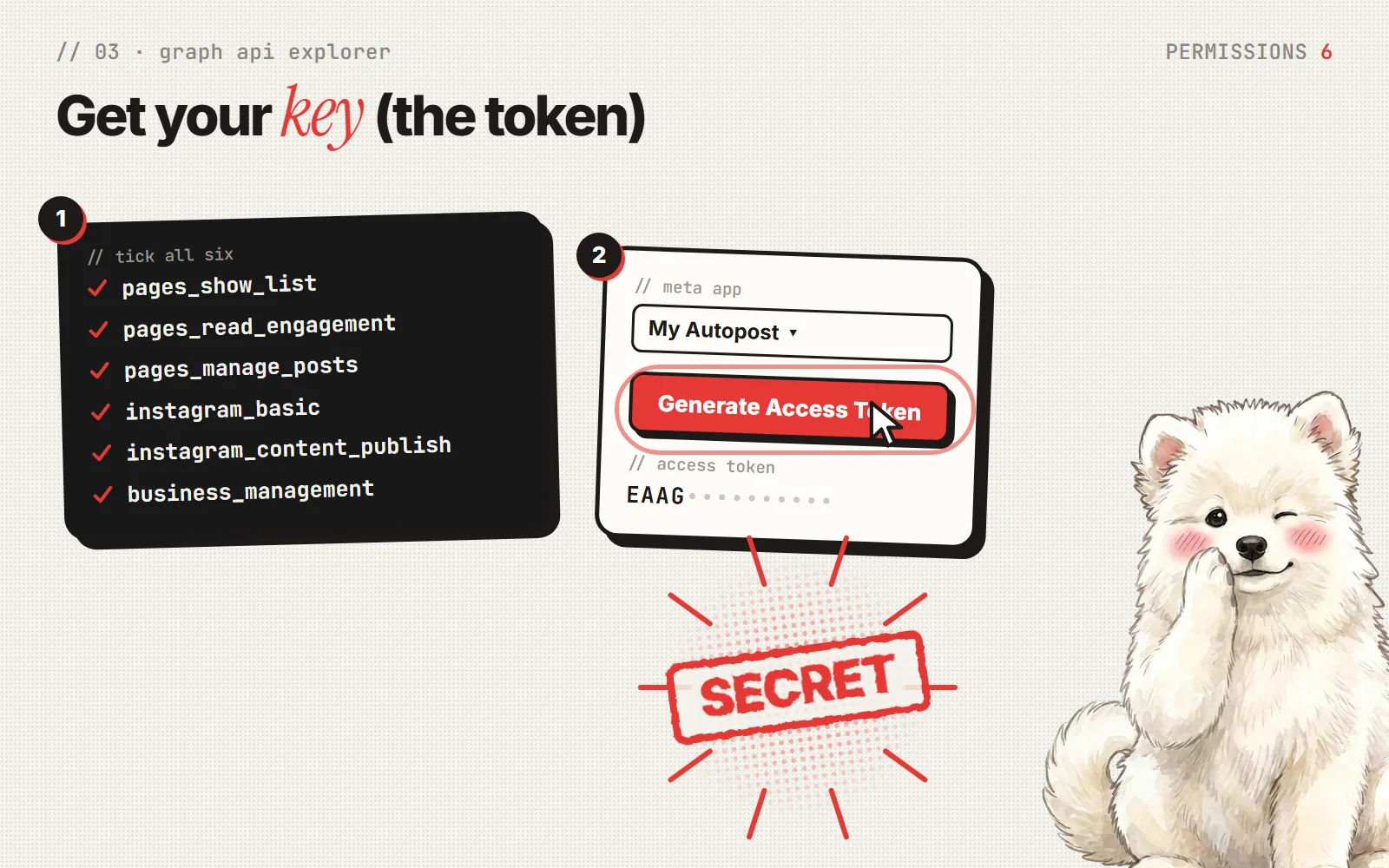
- Go to developers.facebook.com/tools/explorer. This page is called the Graph API Explorer.
- Under Meta App, pick the app you just made.
- In the Permissions box, add these six, one by one. Spelling matters:
pages_show_listpages_read_engagementpages_manage_postsinstagram_basicinstagram_content_publishbusiness_management
- Click Generate Access Token.
- A Facebook window pops up. Click through it, and make sure you tick your Page and its Instagram account when it asks which ones to allow.
- A long code appears in the Access Token box. That's your first key. Copy it.
✅ Done when: you've copied a long code that starts with letters like EAA.
Part 4: Make the key last forever
The key from Part 3 stops working after about an hour. This part swaps it for one that doesn't expire.
- Go to developers.facebook.com/tools/debug/accesstoken.
- Paste your key into the box and click Debug.
- At the bottom, click Extend Access Token. Copy the new, longer key it shows.
- Go back to the Graph API Explorer from Part 3. Paste the new key into its Access Token box.
- In the long box at the top, replace whatever is there with this, then click Submit:
me/accounts?fields=name,id,access_token,instagram_business_account
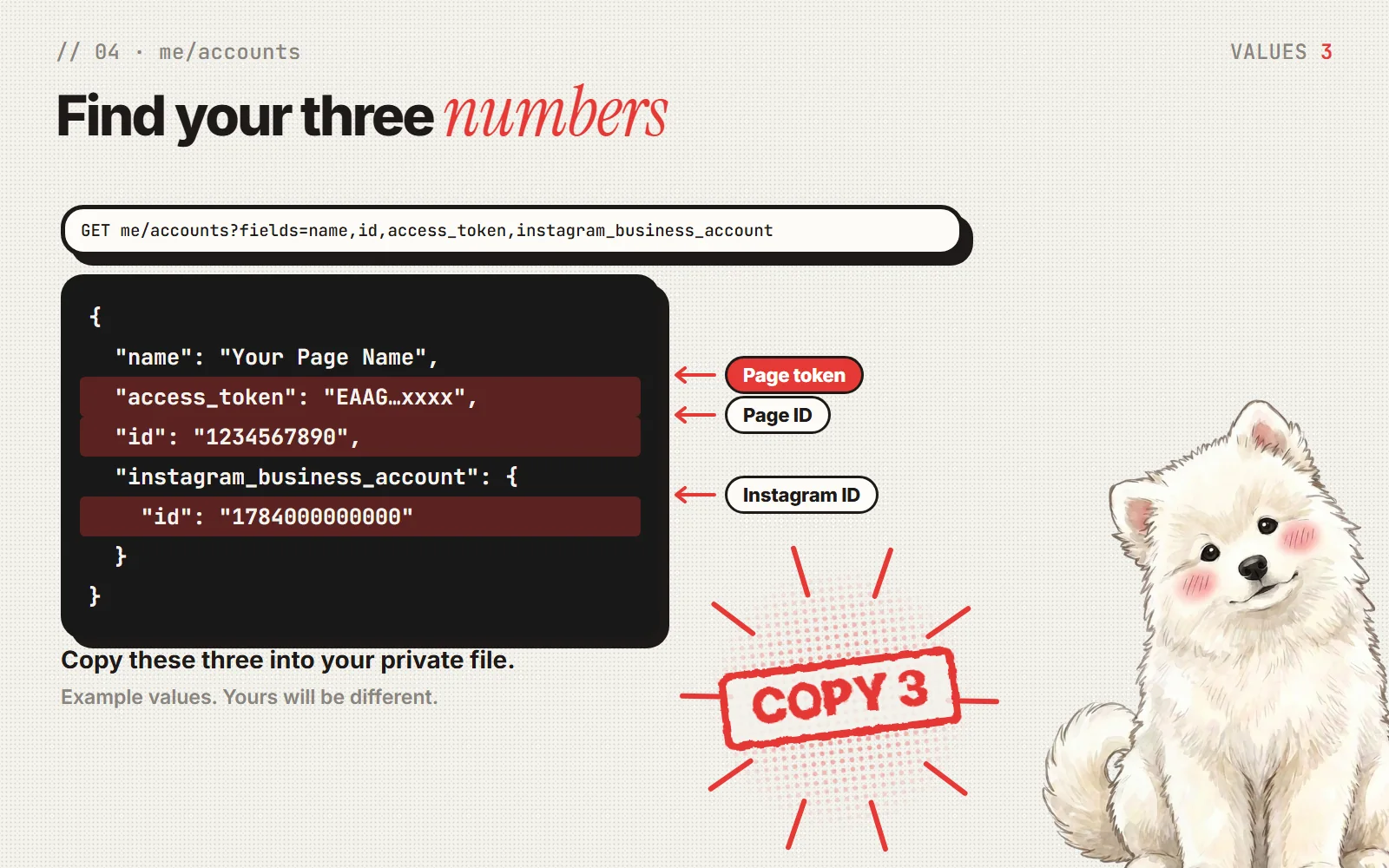
In the result, find your Page's name. Right under it are the three things you need:
- access_token: your Page token. This is the key that doesn't expire.
- id: your Facebook Page ID.
- instagram_business_account → id: your Instagram ID.
Keep this page open for the next part.
✅ Done when: you can see all three values for your Page.
Part 5: Ask Claude to build the auto-poster
Now open Claude and give it something like this:
Build me a small program that posts my finished vertical videos as Reels to Instagram and my Facebook Page, using Meta's official Graph API. Keep a simple list of my videos with a caption and a status. Three times a day, post the oldest video marked "Ready to post", then mark it "Posted". Keep my token in a private .env file that you never print or share, and give me an example file to fill in. Add a test mode that checks my token, and a practice mode that shows what would post without posting. Write a short README with the steps.
Claude will create the program, the list of videos, and an example settings file. Read what it made, and ask it to explain anything you don't follow. That's what it's there for.
Part 6: Put your key in a private file
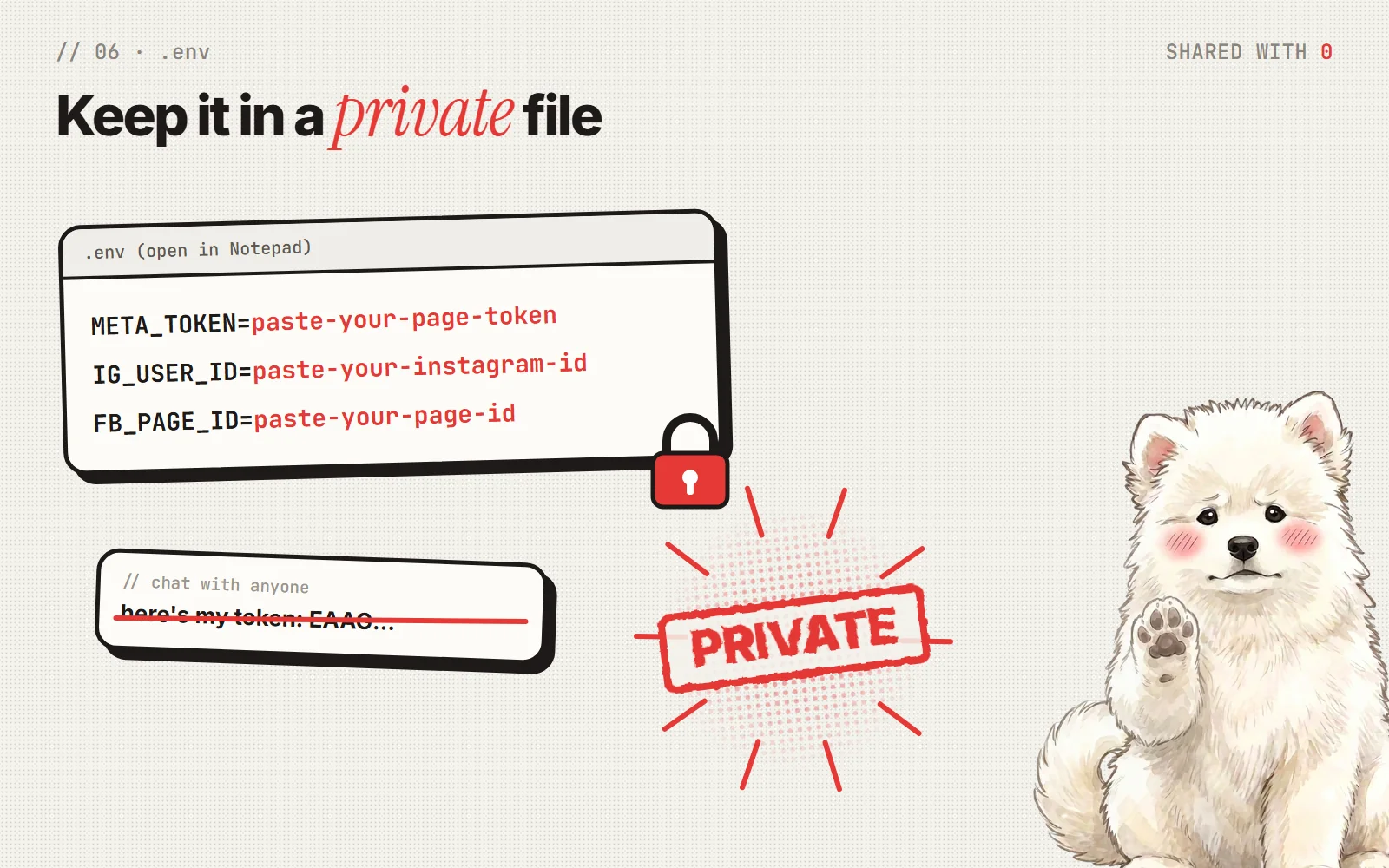
- Ask Claude to create the .env file for you, with empty spaces to fill in, and to tell you where it is.
- Open that file in Notepad (on a Mac, TextEdit).
- Paste your Page token, Instagram ID and Page ID after the matching
=signs. No spaces, no quotation marks. - Save and close.
This is the one rule that really matters: never paste your token into a chat, an email, or a screenshot. That includes your chat with Claude. Fill in the file yourself. Claude's program can read the file without you ever showing Claude the key.
When you're done, just tell Claude: "The tokens are in."
Part 7: Test it safely
Ask Claude to do these three things, in order, from safest to real:
- Check the key. Claude runs the test mode. It should say your key works for both accounts.
- Practice run. Claude runs the practice mode. It tells you which video would post, without posting anything.
- One real post. Pick one video and have Claude post just that one. Then open Instagram and Facebook and look for it.
✅ Done when: your test video shows up on both accounts.
Part 8: Put it on autopilot
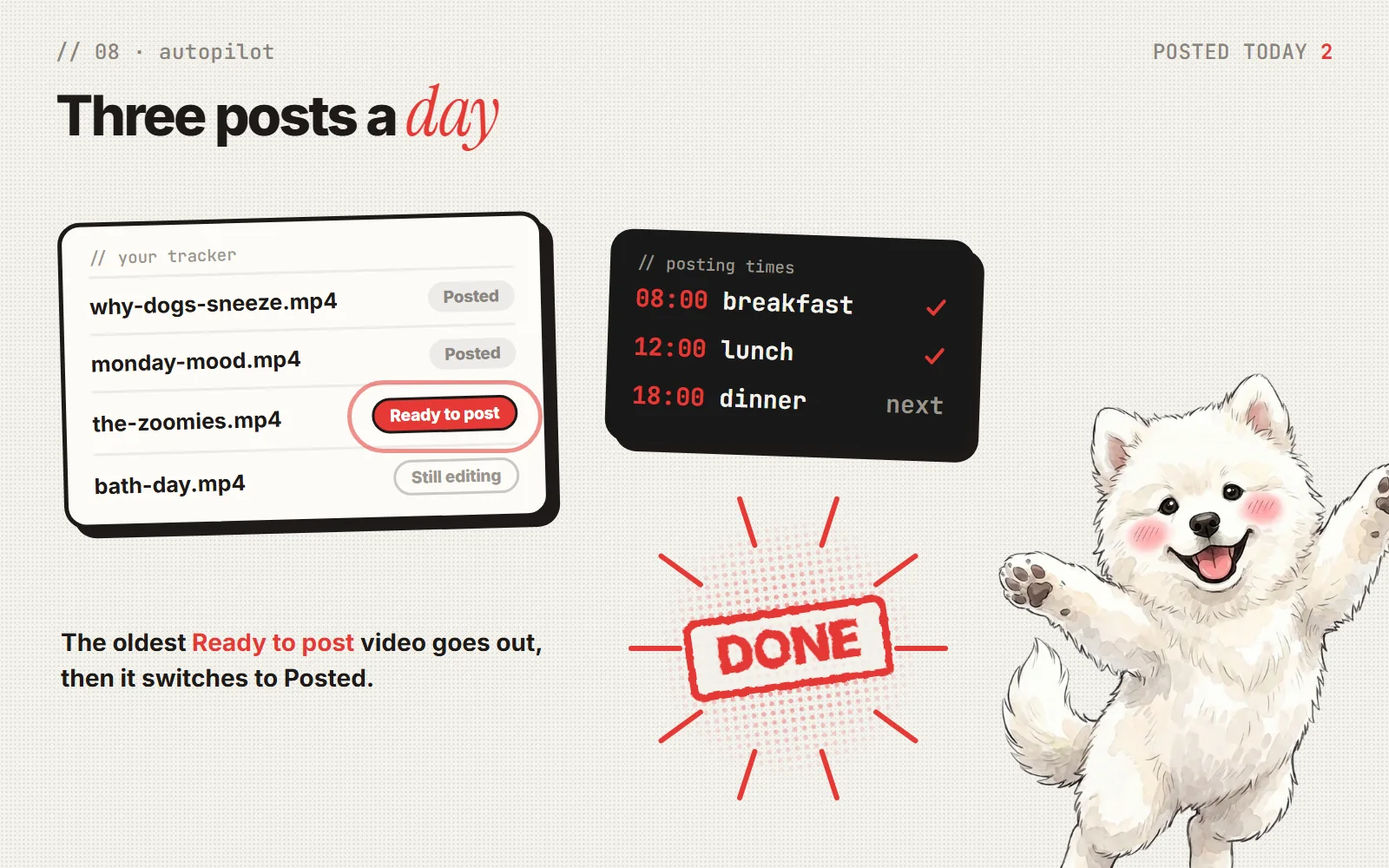
Ask Claude to schedule the program to run at your chosen times. On Windows, it uses the built-in Task Scheduler. On a Mac, it uses a similar built-in tool. I went with 8:00, 12:00 and 18:00.
From then on, your whole routine is:
- Finish a video.
- Change its status to Ready to post.
- That's it.
Each run posts at most one video. If you have ten ready, they go out over a few days instead of all at once.
Good to know: the computer has to be on, signed in and online to post. Ask Claude to turn on Task Scheduler's "run as soon as possible after a missed start" option. Then, if the computer was off at a posting time, it posts the next waiting video as soon as you turn it back on. It catches up with one post, not every missed one.
If something goes wrong
Facebook says "does not have permission to post videos on this target." This happened to me on my first try. Instagram worked, Facebook didn't. It usually means one of these:
- You pasted your first key instead of the Page token from Part 4.
pages_manage_postswasn't ticked when you made the key.- You didn't tick your Page in the Facebook popup, or your account isn't a full admin of the Page.
Fix it, then ask Claude to post the same video to Facebook only. It already knows Instagram is done.
Instagram says the account isn't allowed. Go back to Part 1. The account has to be professional and connected to the Page.
Nothing posted at the scheduled time. Was the computer asleep or signed out? Is any video actually marked Ready to post? Ask Claude to check the log file. The program writes down everything it does.
You think your key leaked. On Facebook, go to Settings & privacy → Settings → Apps and websites, remove your app, then repeat Parts 3 and 4 to make a new key.
How it works (optional, for the curious)
You can skip this. But if you like knowing what's under the hood:
- Instagram posts in three steps. The program creates an empty Reel with your caption, uploads the video file straight from your computer, waits for Instagram to finish processing it (usually under a minute), then publishes.
- Facebook works almost the same way: start an upload, send the file, then finish with the caption.
- After each one, the program writes the post's ID into your list. If Instagram works but Facebook fails, the next run only retries Facebook.
- Instagram allows up to 100 posts a day through this connection, far more than you'll need.
How does this compare to Buffer, Blotato and other tools?
You don't have to build anything. Plenty of apps will post for you. Here's how they stack up for the same job: posting to one Instagram account and one Facebook Page.
| Tool | Cost | Pros | Cons |
|---|---|---|---|
| This setup (built with Claude) | $0 a month to run. Building it needs a Claude plan (Pro is $20/month). | Your Claude plan isn't only for this. You also get an AI assistant for writing, editing and other projects. Posts go straight from a folder on your computer, so there's nothing to upload to a website. No post limits, and it works exactly the way you want. | About 30 minutes to set up. Your computer has to be on and online to post. If it isn't at posting time, it posts the next waiting video as soon as it's back. |
| Meta Business Suite | Free | Made by Meta, so it's official. Nothing to set up. Posts go out even when your computer is off. | You upload and schedule every post by hand. No automatic "post the next video" queue. |
| Buffer | Free, or $12/month for both | Free plan for up to 3 accounts. Cheapest paid option. Simple app. Posts go out even when your computer is off. | Posting to both Instagram and Facebook doubles the price, because each one is a separate paid account. You upload every video to their website. The free plan only holds 10 waiting posts per account. |
| Later | $25/month | Visual calendar for planning. Covers many networks. 14-day free trial. | You upload every video to their website. Pricey for one person. |
| Blotato | $29/month | AI tools that write posts and make images, videos and voiceovers. Up to 20 accounts. Works with automation tools. | No free plan, only a 7-day trial. You pay for the AI extras even if you only want posting. |
| Hootsuite | $99/month | Built for teams: approvals, a shared inbox and reports. Up to 10 accounts. 14-day free trial. | Expensive, and far more than one creator needs. |
Prices checked on October 30, 2026, in US dollars, paying month to month. They change often, so check each site before you sign up.
So which one should you pick?
- You post a few times a week and don't mind a few clicks: Meta Business Suite. It's free and made by Meta.
- You want a simple app with no setup: Buffer. Its free plan may be all you need, and the paid plan is the cheapest here.
- You also want AI to help make the posts: Blotato. It costs more, but it does much more than posting.
- You're a business with a team: Hootsuite or Later.
- You already pay for Claude, or want it for other things too: build your own, like this guide.
I went the do-it-yourself route because I was already paying for Claude, and I use it for much more than posting. My finished videos already sit in a folder on my computer, so there's nothing to upload anywhere. I mark a video ready and it goes out. The one trade-off is that my computer needs to be on. If it's off at lunchtime, the post just goes out when I turn it back on.
What about TikTok and YouTube?
Both are possible with the same idea, just with more paperwork:
- YouTube Shorts needs a free Google Cloud project with the YouTube Data API. It allows about six uploads a day.
- TikTok needs a TikTok developer app. Until TikTok reviews it, posts can only be private.
I started with Instagram and Facebook, and I'll add the others later.
Why bother?
It isn't about posting more. It's about not letting the boring part decide whether something gets shared. Now my work ends when the video is done: I mark it ready, and it goes out at lunch.
If you try this, start small. One account, one video, one test. Then let it run.